

My Sokoban Source Code Plus How to Convert java Application into Windows Executable File
Hello... at this time I will show you step by step, screen by screen how to convert java SE application to Windows Executable File..
this tutorial is part2 from "’Convert JAR Java to executable file. ’. You must read that first before you read this..
Enjoy this song while your read this.. just cozy... ^_^.. I like this song.. ^_^
Bonjovi - Always [Slow version Accoustic]
At first you must download this X-FILEdownload sokoban project source code + Exe4J Project File[X-FILE]
in that rar file include my sokoban source code and exe4j project file.
you can open the project file to view detail configuration.
Okay.. let’s start... 
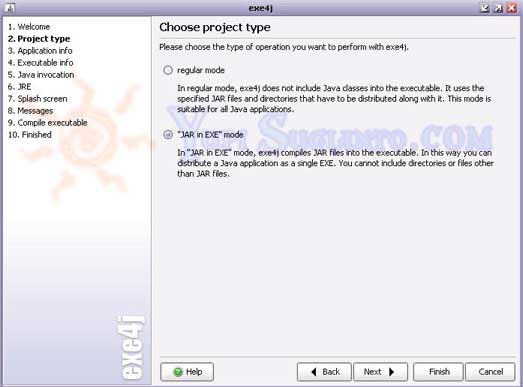
This is screen "Project Type" configuration. choose ’JAR in EXE’ mode
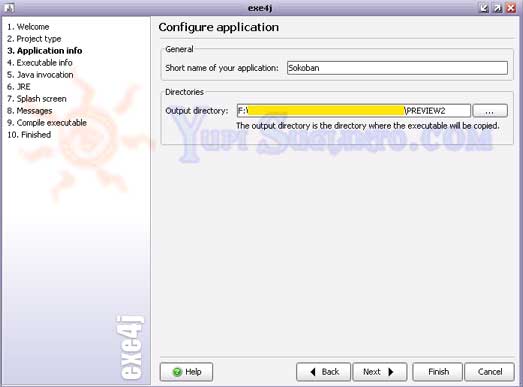
This is screen "Application Info" configuration. Just set your name of your application, and browse your output directory. (I’m setting that in my project source code folder). 
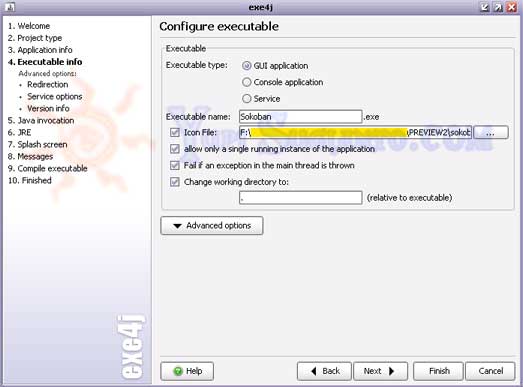
This is screen "Executable Info" configuration.
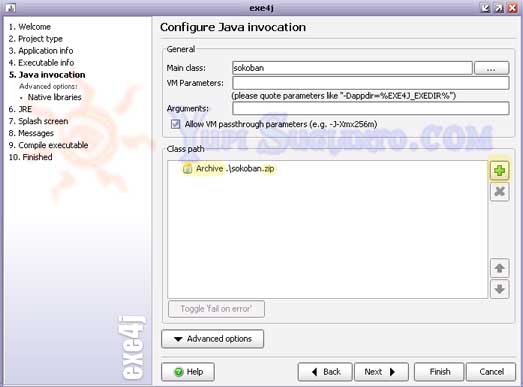
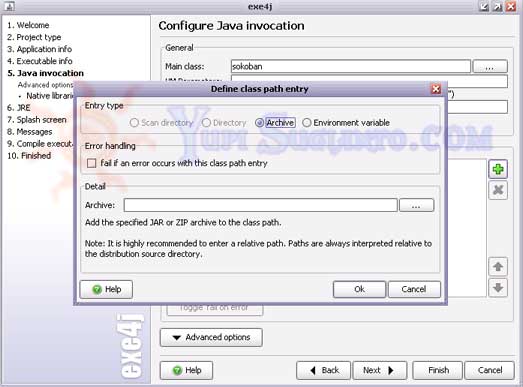
This is screen "Java Invocation Info" configuration. in this part, you must Archive all your project file class path to ZIP file or JAR file. I use WinZip Application to make that. view ’sokoban.zip’ in X-FILE for detail file in zip archive.
after that. you ’Add Class path’ with symbol ’+’ and choose ’Archive’. view detail in screen capture.
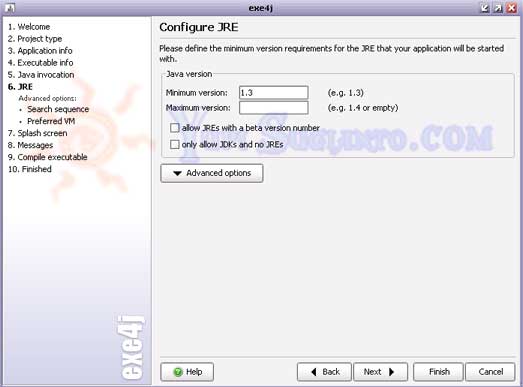
This is screen "JRE" configuration.
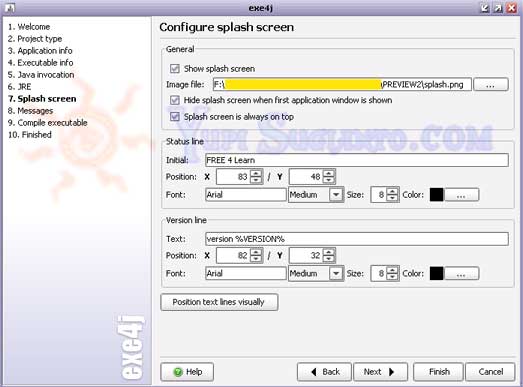
This is screen "Splash Screen" configuration.
It’s Done. Compile that with click ’Compile Executable’ Text in left menu.
Selamat Mencoba... Hope Useful... Hope can work.. 99% Guarantee
 .
.
Best Regards,
Yupi Sugianto, S.Kom
Enjoy this song while your read this.. just cozy... ^_^.. I like this song.. ^_^
Bonjovi - Always [Slow version Accoustic]
At first you must download this X-FILEdownload sokoban project source code + Exe4J Project File[X-FILE]
in that rar file include my sokoban source code and exe4j project file.
you can open the project file to view detail configuration.
Okay.. let’s start...
This is screen "Project Type" configuration. choose ’JAR in EXE’ mode
This is screen "Application Info" configuration. Just set your name of your application, and browse your output directory. (I’m setting that in my project source code folder).
This is screen "Executable Info" configuration.
This is screen "Java Invocation Info" configuration. in this part, you must Archive all your project file class path to ZIP file or JAR file. I use WinZip Application to make that. view ’sokoban.zip’ in X-FILE for detail file in zip archive.
after that. you ’Add Class path’ with symbol ’+’ and choose ’Archive’. view detail in screen capture.
This is screen "JRE" configuration.
This is screen "Splash Screen" configuration.
It’s Done. Compile that with click ’Compile Executable’ Text in left menu.
Selamat Mencoba... Hope Useful... Hope can work.. 99% Guarantee
.
Best Regards,
Yupi Sugianto, S.Kom


Leave a Comment